Cross-platform client with configuration-based rule routing. iPhone / iPad: one-time purchase for $2.99 on the App Store. Mac / Windows / Android / Linux versions are free.
iOS / macOS / Windows / Android / LinuxRule matching · first matchConfiguration entry · Global Routing
Configuration and connection
Rule Routing and Connection Settings
Before connecting, distinguish two things: server details determine where the connection goes; rules determine which requests use it. If you already have a subscription, first check in Home that the server has been imported, then see which mode is selected in Global Routing. A correctly written rule file does not necessarily mean the client is using it.
Choose a connection strategy for specific requests
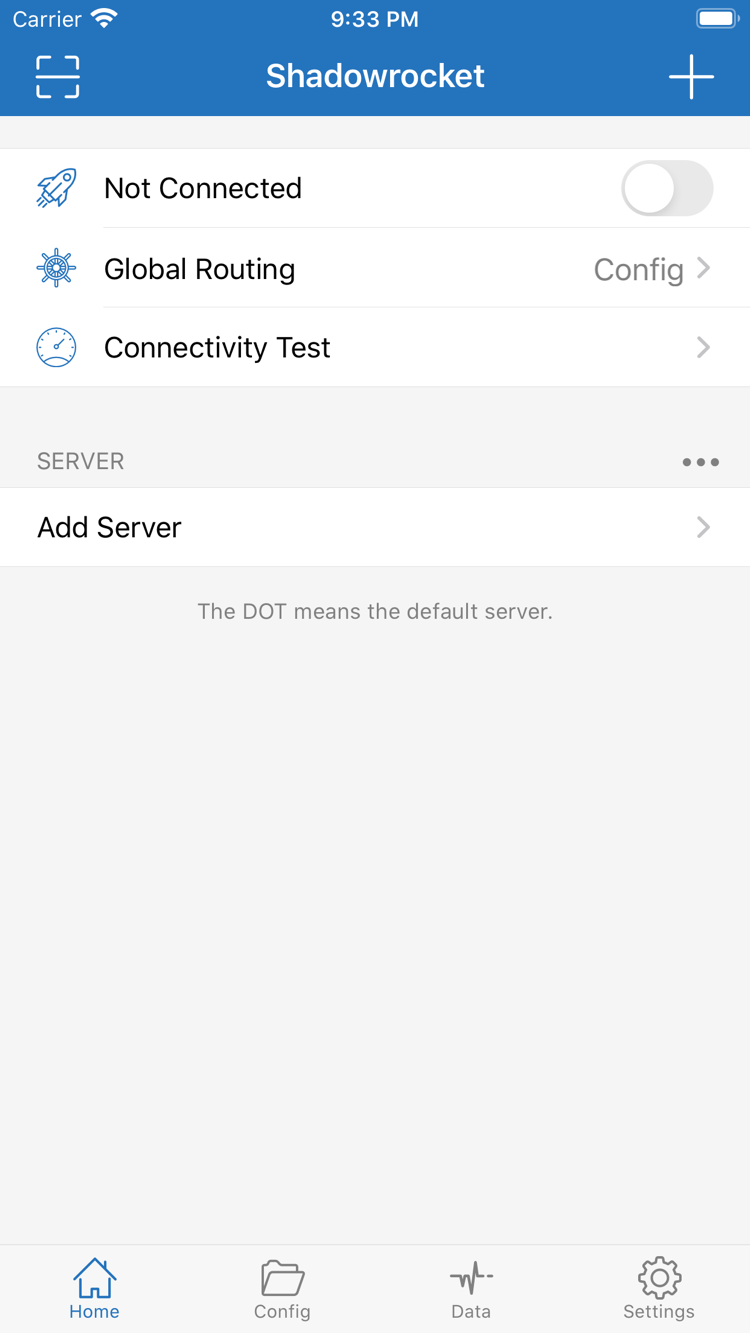
In Home, select Config under Global Routing for requests to be evaluated against the current configuration's rules. When Proxy or Direct is selected, rule routing is not a suitable explanation for the result. Rules are checked from top to bottom, and the first match determines the strategy. This example sends only the specified subdomain directly; other domains with the same suffix use the proxy. If the suffix rule is moved above the exact-domain rule, the specified subdomain will also use the proxy. FINAL handles requests that do not match any preceding rule.
First connect manually once from Home, then open On Demand in Settings. On-demand connection controls when a connection starts; it does not change request routing. Start with a network condition that is easy to reproduce, switch networks once, then return to Home and check the connection status. To troubleshoot intermittent disconnections, pause on-demand connection and run one manual test to determine whether the trigger condition is unexpected or the server itself is unreachable.
Where to check
Settings → On Demand
Home → Check connection status
Enter fields for the server protocol
If you already have server parameters, open Add Server, set Type to the protocol used by the server, then fill in the fields shown for that type. Even when two protocols both use Host and Port, their authentication details are not interchangeable. Test this server after entering its details; do not change keys, ports, and routing rules all at once while trying to connect. If saving fails, check the required fields first. If saving succeeds but the connection fails, compare the settings on both the client and server.
Shadowsocks
VMess
VLESS
Trojan
HTTP
SOCKS5
WireGuard
Hysteria2
Import and refresh an existing subscription
Get an existing subscription URL from your service provider, choose Subscribe in Add Server and save, then return to Home to check whether selectable items appear under SERVER. A single-server share link describes one server; it is not the same as a subscription that can be refreshed periodically. If the list is empty after refreshing, first determine whether the download failed or the returned content could not be parsed, then check whether the URL was truncated. Do not expose the full URL in troubleshooting screenshots, especially the parameters after the question mark.
Example subscription URL
https://example.com/sub?token=xxxx
Edit, back up, and sync configuration
In Config, confirm which file is currently in use and keep a working copy before making changes. When changing only rules, do not also change the parsing settings in [General], or it will be harder to identify the cause of an issue. Before syncing configuration with iCloud, check the iCloud account used on each device and the sync scope. After syncing, verify which file is enabled on the other device. Keep copies containing server parameters secure; do not share them as public rule examples.
[General]
dns-server = system

[Rule]
DOMAIN,example.com,DIRECT
FINAL,PROXY
Separate server, rule, and statistics issues
First use Connectivity Test in Home to check the current server, then use the same destination to verify actual access. A successful test means a connection was possible under the selected test conditions; it does not guarantee access to every destination. If only certain requests have issues, note Global Routing and the matched strategy, then check Diagnostics in Settings. Use Data to compare traffic changes during the test, but a change in statistics alone cannot show which rule matched.
Troubleshooting sequence
Connectivity Test → Actual access → Diagnostics
Data: Compare traffic before and after the test
Compare rule behavior using the same destination
If proxy mode works but switching back to Config fails, keep the same server, network, and destination, and compare only the mode. Then check the destination's actual hostnames: the page, images, and login requests may each use a different domain, so opening the home page does not mean every request followed the same rule. When rule scopes overlap, check whether a broader suffix rule above is taking precedence over a later exception. Do not immediately change all requests to use the same strategy.
When using IP rules, distinguish between directly accessing an address and accessing a domain that is then resolved to an address. Do not infer the match result from how an address looks, and do not assume the private address range in an example is a suitable default for every network. After making a change, send the request again and confirm it is not reusing a connection established before the change.
Two access options: iPhone / iPad: a one-time App Store purchase for $2.99; Mac (Apple Silicon and Intel) / Windows / Android / Linux versions are free, with packages available from this site's /dl/shadowrocket/ path. The cards below link to platform-specific access and installation instructions; they do not start an installation.
If the system blocks the first launch, return to the download page and check the platform, architecture, and file source. Then follow the relevant system prompts in the installation and permission instructions. Confirm the current app once only if you are authorized to install it and the system permits it; do not disable system-level protection to complete installation. Stop if the source is unclear, the package does not match the target device, or organizational policy prohibits installation.
On an iPhone or iPad, open the App Store product page. Check the developer beneath the app title or in the product information, then check the official icon, and finally verify the App ID. The developer should be Shadow Launch Technology Limited, the icon should match the blue-and-purple outlined rocket on a white background shown here, and the number in the product link should be 932747118. Search ranking, similar icons, and abbreviations are not reliable as the sole basis for identification. If you opened a search result rather than the product page, open the listing first and verify it there; do not buy based on the icon alone in a results list.
The App ID identifies the product listing; it is not an order number or a field to enter during registration. If someone sends you an image or description, use it as a clue for finding the listing, but rely on the product information displayed on your own device when making a purchase. For listings with the same name, check the developer and ID one by one. If either does not match, do not treat it as the corresponding product listing.
Whether a product appears, which currency is used, and whether the current device can install it depend on the store region and compatibility information, respectively. This link points to the US product page; it does not change the store region of the account currently signed in. If the listing is unavailable, first check the current country or region in the App Store account, then determine whether this is a regional availability difference or a system or device requirement issue. Changing the phone's display language does not change the store region used for purchases. System requirements for iPhone / iPad are always as listed on the App Store page.
If you are preparing to switch devices and still have the old one, first check the account used for the purchase and the purchase history on that device. If multiple accounts have been used on the same device, the currently signed-in account may not be the one used for the original purchase. Checking the account and device compatibility separately is more likely to identify the issue than repeatedly opening the same regional link.
One-time app purchase and connectivity services are separate
The US App Store price for iPhone / iPad is a one-time purchase of $2.99. The purchase can be used on both eligible device types under the same purchase account. The Mac / Windows / Android / Linux versions are free. Other store regions use the currency and price shown on their product pages. Shadowrocket is a closed-source commercial application. A purchase record covers access to the client, not server addresses, connection credentials, or the duration of a connectivity service.
Handle device changes, reinstalls, and updates separately
To reinstall on an iPhone or iPad, first make sure the App Store is signed in with the original purchase account, then find Shadowrocket in purchased items. If the page shows a purchase button instead of a redownload option, do not pay again yet; check the current store account, region, and original purchase record. Redownloading restores the app, but does not necessarily restore the previously selected server, enabled configuration file, or local changes. After opening the app, check the server list in Home and the enabled file in Config, then test the connection.
App updates for iPhone and iPad are handled through the App Store. For Mac, Windows, Android, and Linux, choose update packages from the app page on this site, matching the architecture and distribution format to the current device. If you changed rules before updating, keep a separate copy of the current configuration file and a record of its enabled status. After updating, retest a destination that previously worked and confirm the settings are unchanged before deciding whether to modify rules. Do not replace the app, import a new subscription, and rewrite rules all in the same troubleshooting session.
When import problems occur, start with the right entry point: if you have complete fields but no link, check the protocol; if you have a share link but do not know whether it refreshes, check the link format; if no item appears after importing, check the returned content and refresh timing. A successful import does not mean the connection works; verify these stages separately.
Single-server share links and subscription URLs use different import methods. Learn how to identify link prefixes and purposes, which encoded content should not be edited manually, and why an updated share link usually needs to be imported again. During troubleshooting, you can describe the prefix without sharing the full string containing connection details.
Starting with Type in Add Server, learn which parameters are common across protocols and which authentication or transport fields apply only to specific protocols. For readers with existing server settings who want to identify where each field belongs before entering it.
Check in order whether the URL is complete, the network can retrieve its content, the returned content can be parsed, and the refresh timing is appropriate. The article also distinguishes “no imported result” from “items appear but cannot connect,” helping prevent a parsing issue from being mistaken for a routing issue.
 Official Site & Manual