iPhone / iPad
Refer to the App Store listing for system requirements. We recommend opening it on the device you plan to use, then checking availability in your store, system compatibility, and purchase status.
View store region guidanceGet the app / Verify installation source
Choose a download for your device. Check the system requirements, processor architecture, and software source before installing.
iPhone / iPad: $2.99 one-time purchase. Check the App Store for local pricing and system requirements. Mac / Windows / Android / Linux versions are free.
iPhone and iPad use the same App Store listing. For other platforms, choose the package that matches your device. Linux download links are loaded from the release manifest; if it’s unavailable, the buttons open the installation guidance.
Refer to the App Store listing for system requirements. We recommend opening it on the device you plan to use, then checking availability in your store, system compatibility, and purchase status.
View store region guidanceIn About This Mac, check Chip or Processor. If the App Store on your Mac shows the iPhone or iPad app, also read its compatibility details. An iPhone or iPad app being available on a Mac does not verify the source of a desktop installation package with the same name.
Check the system type under Settings → System → About. A filename containing x64 only indicates that it claims to target a particular architecture; it does not identify the publisher. Don’t look for another copy with the same name in pop-ups or forwarded messages.
Check the device manufacturer’s specifications to distinguish the chip architecture from the app architectures supported by the operating system. Even if both support arm64, that doesn’t identify who published an app package.
Distinguish between the distribution, processor architecture, and package format. Debian and Ubuntu typically use .deb; Fedora and openSUSE typically use .rpm. AppImage is another distribution format. None of these formats proves where software came from.
First, distinguish between two situations: if the device is incompatible, recheck the system requirements and architecture; if the system can’t verify the publisher or blocks the app from running, recheck the file’s source. Changing the installation method won’t resolve an unknown source. If someone forwarded the file to you, go back to a distribution channel where you can independently verify the publisher instead of using the forwarded copy.
| System | Common situation | What to do |
|---|---|---|
| Windows | SmartScreen says “Windows protected your PC.” | Cancel the installation and leave system protections enabled. Verify the publisher and where the file came from. For a work or school device, follow your administrator’s process. |
| macOS | The system can’t verify the developer, or says the app is “damaged.” | Don’t change quarantine settings to run this copy. Check its source first. Only if you can verify the publisher and distribution channel should you download it again from that channel and review the system warning. |
| Android | The browser or file manager asks you to enable “Allow installation of unknown apps.” | Don’t grant this permission to an app from an unverified source. Verify the distribution channel before deciding whether to proceed, and don’t leave installation permissions enabled just to get past a download prompt. |
| Linux | The software manager refuses to install the package, or its architecture doesn’t match the system. | Check the architecture in system information, then verify the publisher’s support details for your distribution and version. Don’t use elevated permissions to force an unknown file to run. |
App availability in the App Store depends on the country or region associated with the purchasing account. A product page URL may point to a particular storefront, but download availability is determined by the account used for Media & Purchases on the device. If the app appears in a browser but the App Store says it’s unavailable in your region, both results can be correct. Check the account region instead of relying on search results to decide whether the app has been removed.
If the message says your device is incompatible rather than the app being unavailable in your region, check the listing’s compatibility section, then go to Settings → General → About to check your system version. Changing your store region won’t change your system version. Before purchasing or downloading again, make sure the store is using the account you intend to use.
Don’t choose a listing based only on its name or search ranking. Open the product page using the App Store button on this page, then check the app ID, developer, and icon in that order. The app ID distinguishes listings with the same name. The icon can only help with identification, since other listings may use similar colors and shapes.
id932747118. If you found the listing in the App Store, copy its link from the app’s share menu and check the app ID in the URL.The App Store screenshots below are for finding your way around the app. Home shows the connection status, Global Routing, Connectivity Test, and the SERVER list. Use Add Server to enter details for an existing server. Fields vary depending on the selected Type. Screenshots don’t verify the App Store listing or mean that a connection is configured after installation.
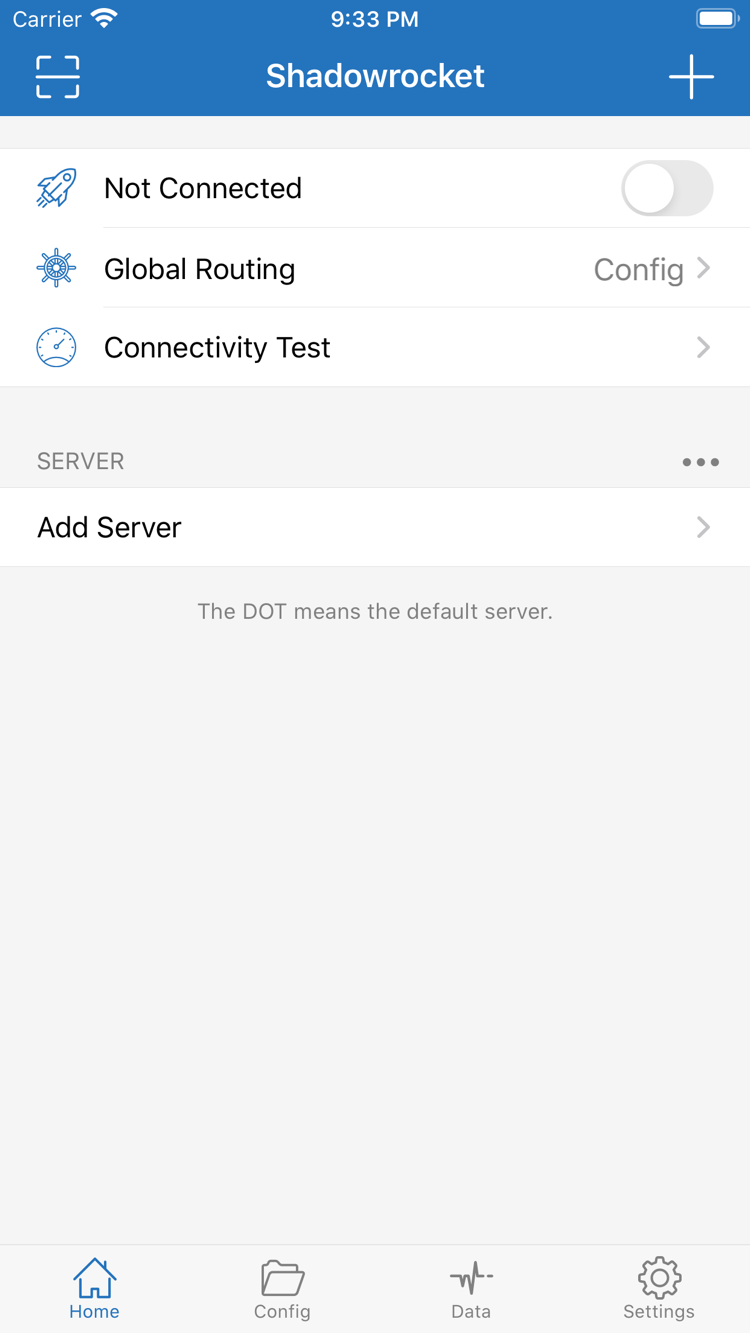
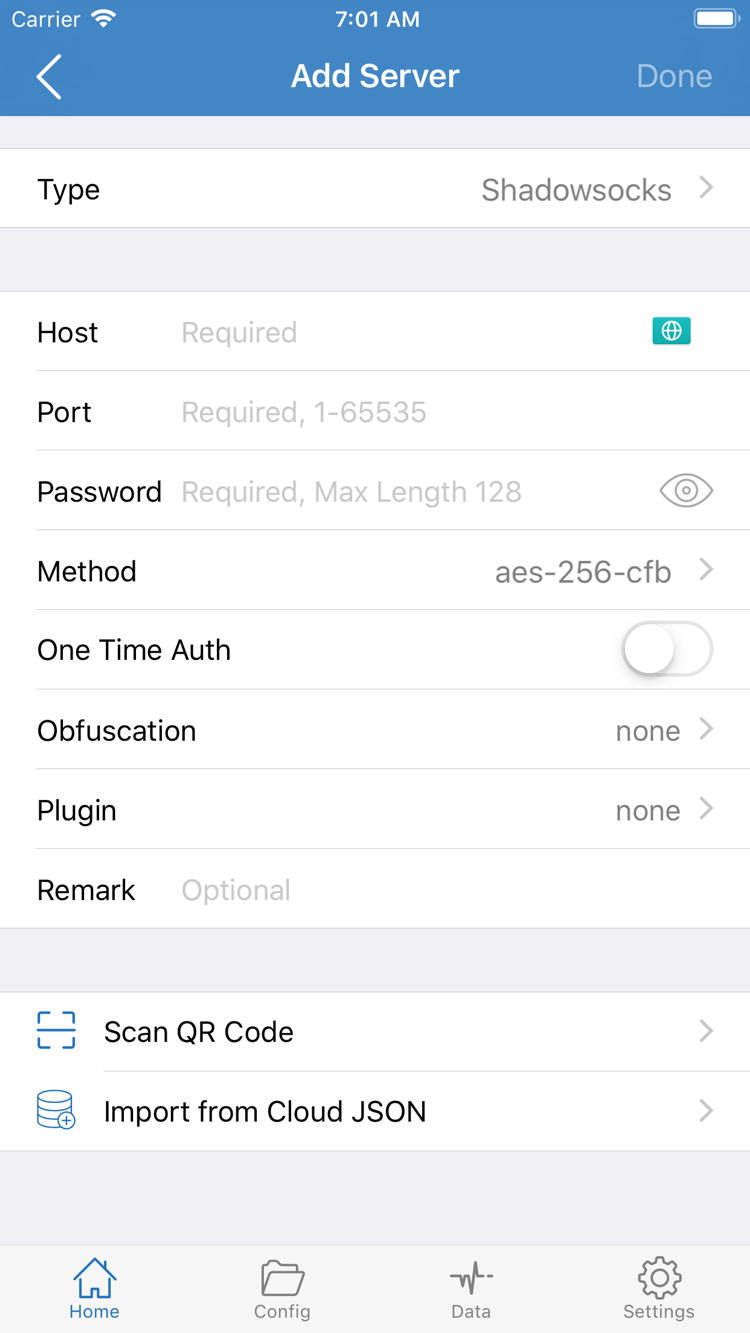
If you’ve already purchased Shadowrocket, open the App Store with the original purchasing account, tap your account picture, and find Shadowrocket in the app list or purchase history. If you see a cloud-shaped redownload button, tap it. When switching to an iPad, you can also check the purchase history for the same account and confirm that the new device meets the system requirements on the product page.
If the app isn’t in your purchase history, first check whether Media & Purchases is using the same account as before. The account used to sync photos and backups may not be the one used to purchase the app. If the product page shows a price again, check the original purchase history, store region, and app ID before taking any action. Don’t pay again just to test whether the purchase can be restored.
Restoring a purchased app and restoring its configuration are separate things. Your purchase history lets you redownload the client, but it doesn’t back up subscription links, server settings, or custom rules. If your old device still works, save your own configuration before reinstalling. To set things up on a new device, see the user guide to find Add Server and Config. Don’t share configuration files that contain passwords or access tokens.
For iPhone and iPad, refer to the App Store listing in the storefront associated with your current account for purchase details. Before confirming a purchase, check the product name, transaction amount, and currency. If a computer or Android app with the same name claims to offer a license or paid plan, don’t confuse it with your App Store purchase history.
For first-time troubleshooting, check three things in order: confirm the app is installed correctly, make sure your own server or subscription imported successfully, then check the connection status and Global Routing. If the app opens but the list is empty after importing, check the original link and its response first; buying again or reinstalling usually won’t fix a problem with subscription contents. To find out why traffic follows a particular policy, see the rules manual.
Don’t rely on the name alone. Choose the package for your platform on this page, then check the publisher and device architecture before installing.
Open About This Mac from the Apple menu. The Chip field shows the Apple silicon model; on Intel Macs, check the Processor field. A matching architecture does not prove that an installation package is trustworthy.
Cancel the installation and leave system protections enabled. Recheck the file’s source through a verifiable distribution channel. If your device is managed by an organization, contact its administrator.
Open the listing for app ID 932747118 directly, then check your account’s store region and device compatibility. Being able to open the webpage doesn’t mean the app is available to purchase in your account’s store.
If you’ve already purchased it, use the original purchasing account to find it in your App Store purchase history. If a redownload button appears, tap it. If you see a price again, first check the account and purchase history.
Open the same App Store listing on your iPad to check compatibility. Refer to the listing for system requirements. If you’ve already purchased it, first look for it in your purchase history.